
Quick Guide
Choose a class, enter Elwynn Forest and move to start. The v0.127.0 character screen lists 1, 2 and 3 for choosing a card; in our run, pressing 2 selected the second card.
- Open the creator’s game and choose a class.
- Enter Elwynn Forest and move to begin the run.
- Read the level-up cards; the v0.127.0 menu lists 1, 2 and 3 to pick one.
Start on the creator’s browser game, choose a class and enter the opening zone. The instructions below were checked against the game menu and the beginning of a run on version 0.123.0.
On this page
Choose a class and enter the first zone
The character screen shows nine class choices. Pick one to inspect its starting ability and character details. The class comparison lists each starting spell and picker health. In our fresh browser session, Elwynn Forest was available and the character showed one of twelve zones open. Other characters and later versions may differ. The zone unlock order shows which boss the menu names for each later area.
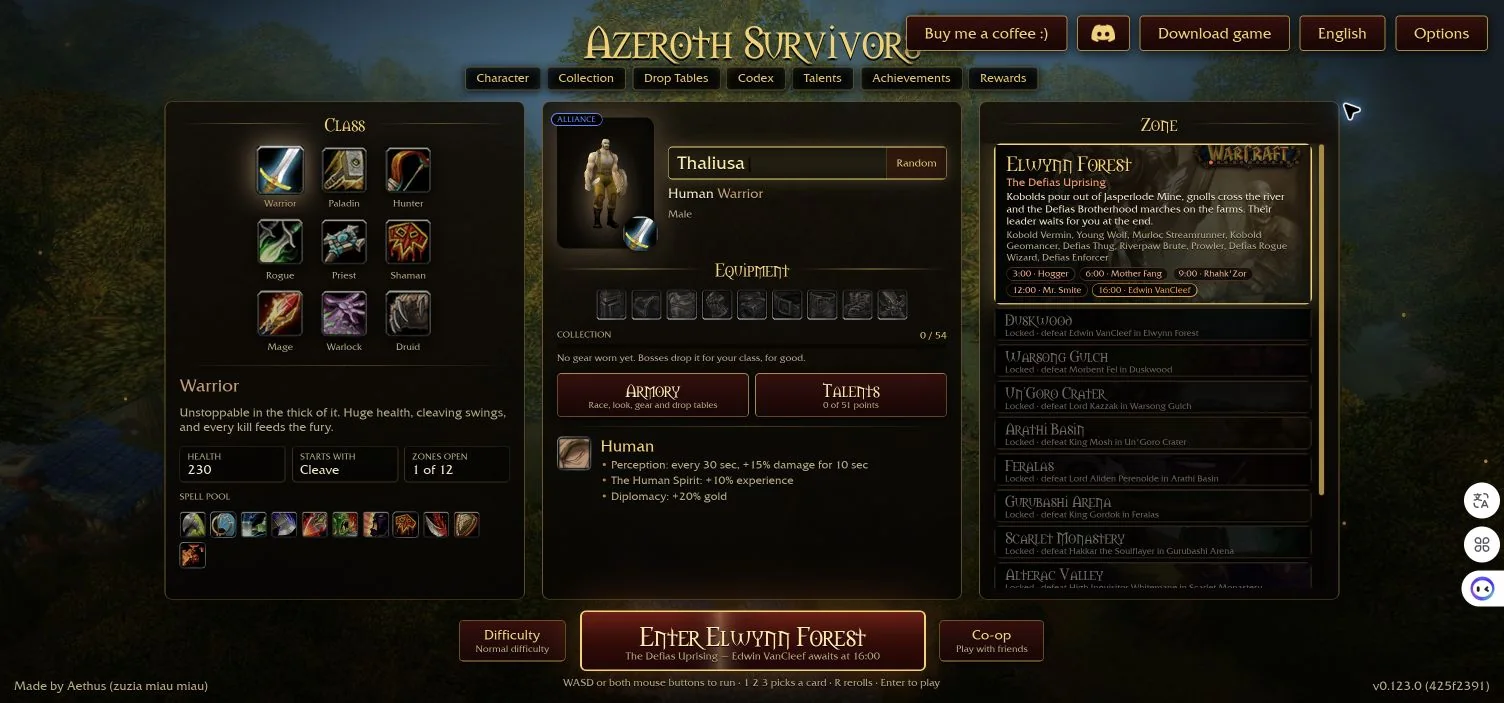
Move to begin
Select Enter Elwynn Forest. The first screen says “Move to begin.” We pressed W and the run started. The character screen lists WASD or both mouse buttons for movement. The game shows a timer and a countdown to the next boss.
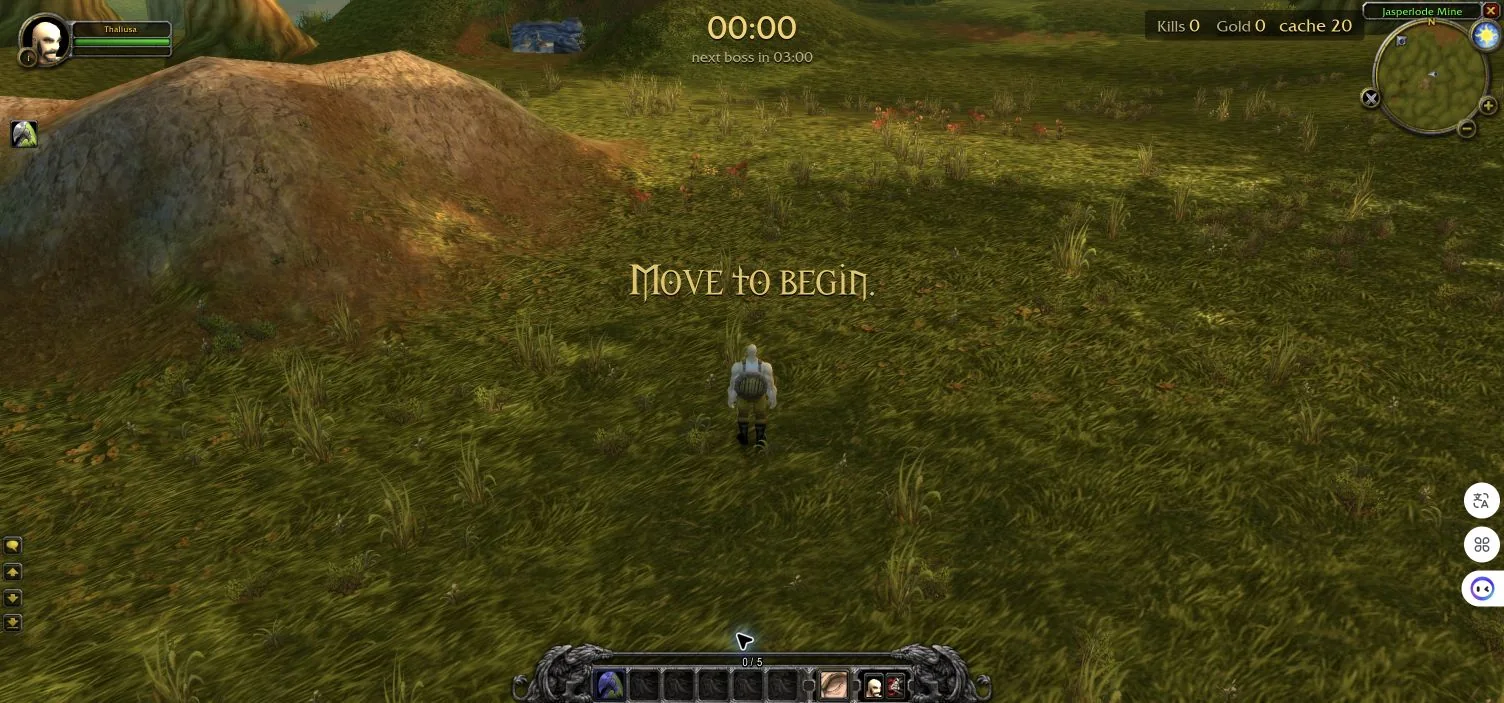
Check or change key bindings
From the character screen, open Options in the upper right and choose Key Bindings. In our v0.126.0 browser session, the movement list showed W and S for forward and backward, A and D for turning, Q and E for strafing, and Space for jump. Some actions also displayed alternative bindings. These are the values shown in that session; your saved settings can differ.
The screen instructs you to click a key and then press a key, mouse button or wheel to bind it; right-click removes a binding. We inspected the instructions without changing any binding, so we have not verified a reassignment or each action in a run. Check the displayed settings before changing them.
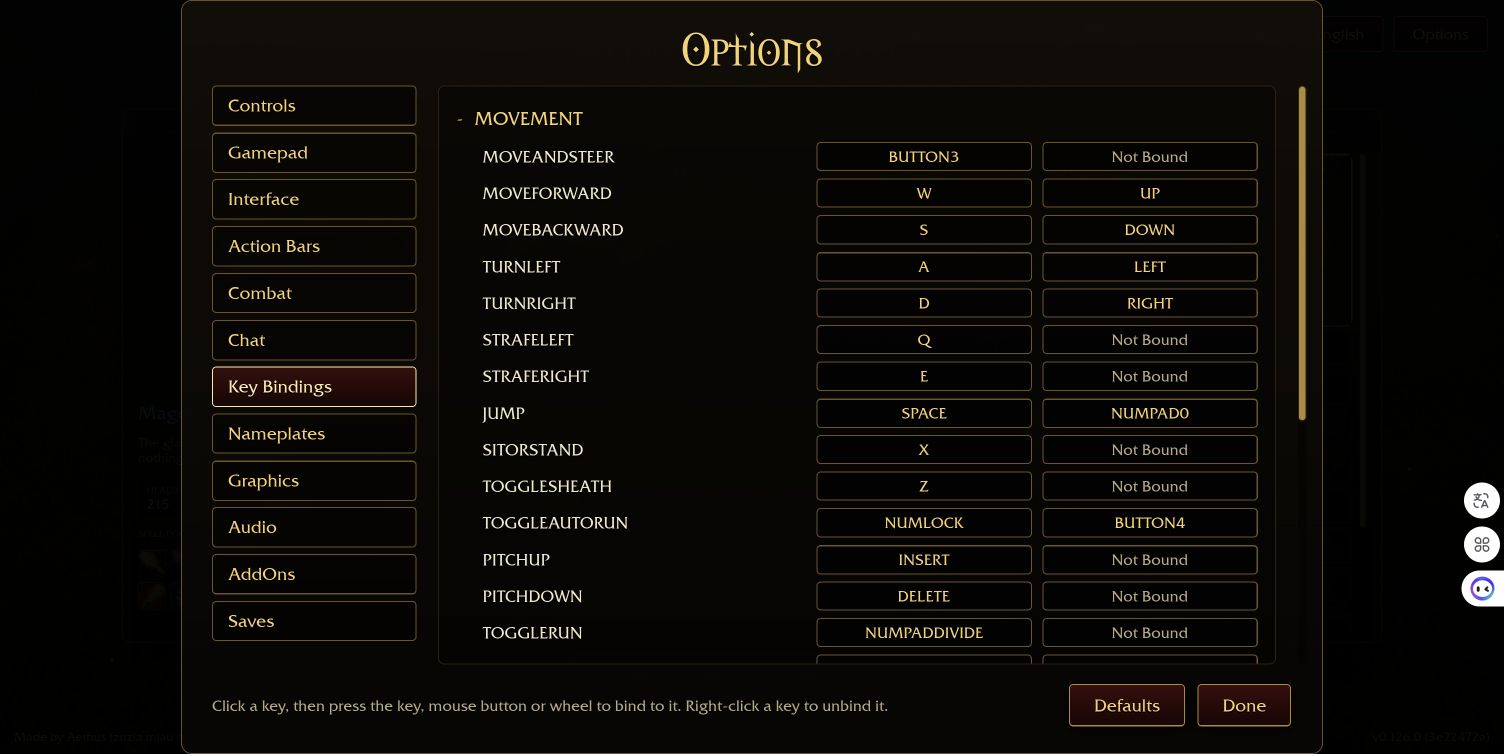
Choose a card when you level up
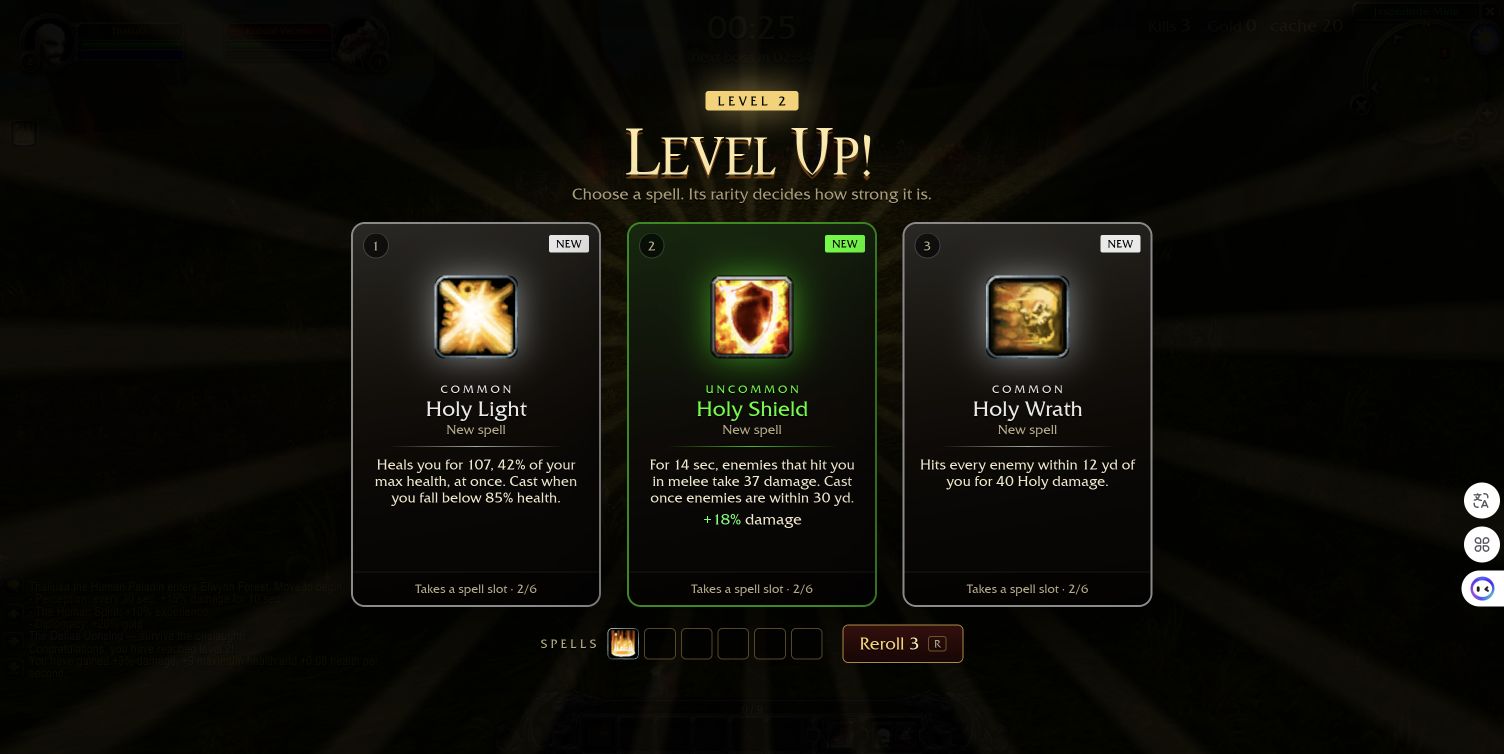
The level-up screen in our run offered three numbered spell cards. Each card showed its name, rarity and description. Pressing 2 selected Whirlwind; the next level-up screen showed it in the spell bar. These were the cards offered in one run, not a fixed opening sequence.
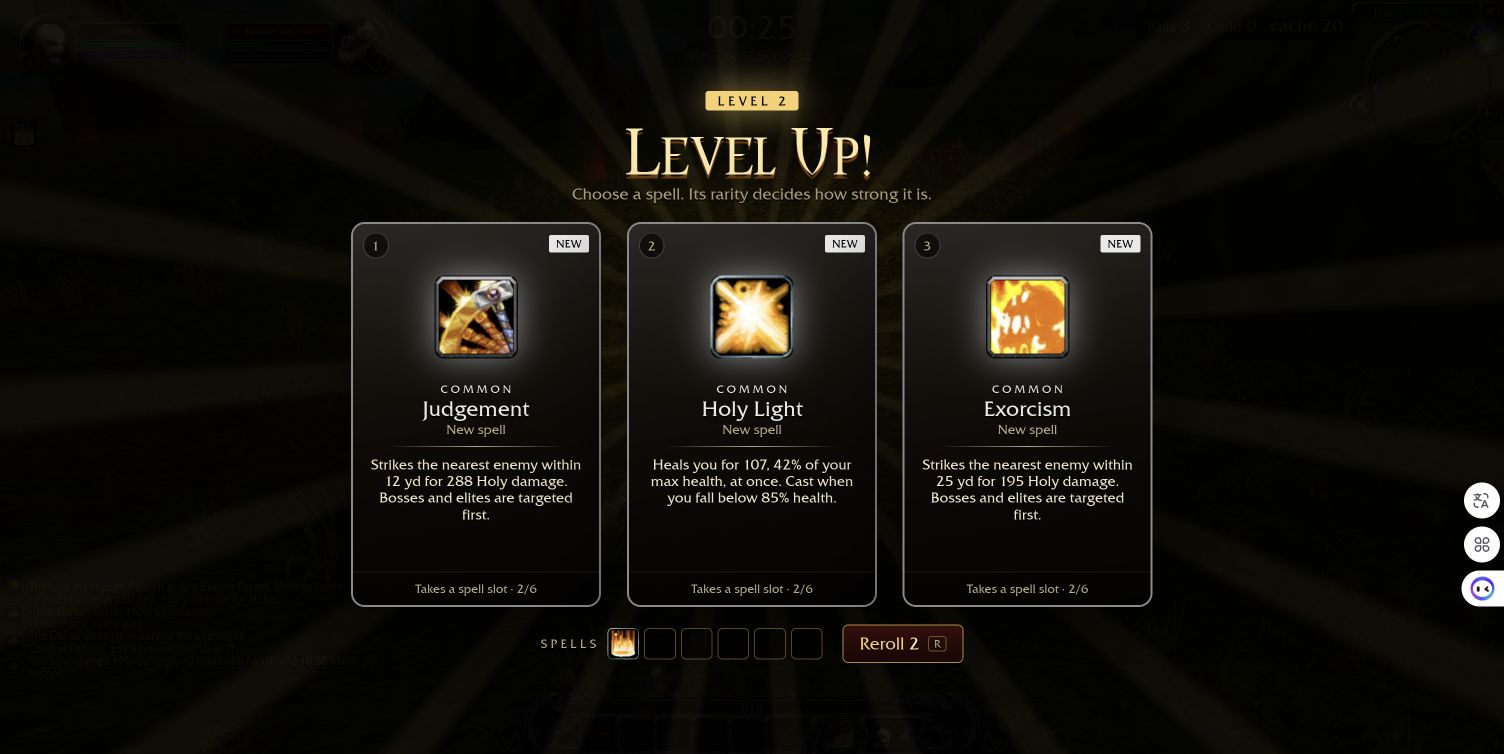
The v0.127.0 character screen lists 1, 2 and 3 to pick a card and R to reroll. In a separate fresh Paladin run, pressing R at level two changed the offered cards and the displayed rerolls from 3 to 2. We then pressed 1 to select Judgement; its icon appeared in the spell bar at the next level-up. These are observations from one run, not a guarantee of the same cards or starting rerolls on every character.
Whiter's overview video below includes another level-up screen around 4:13. The video was published on 14 October 2026; its game version is unknown, so compare its interface with your current game.
Check your class talents between runs
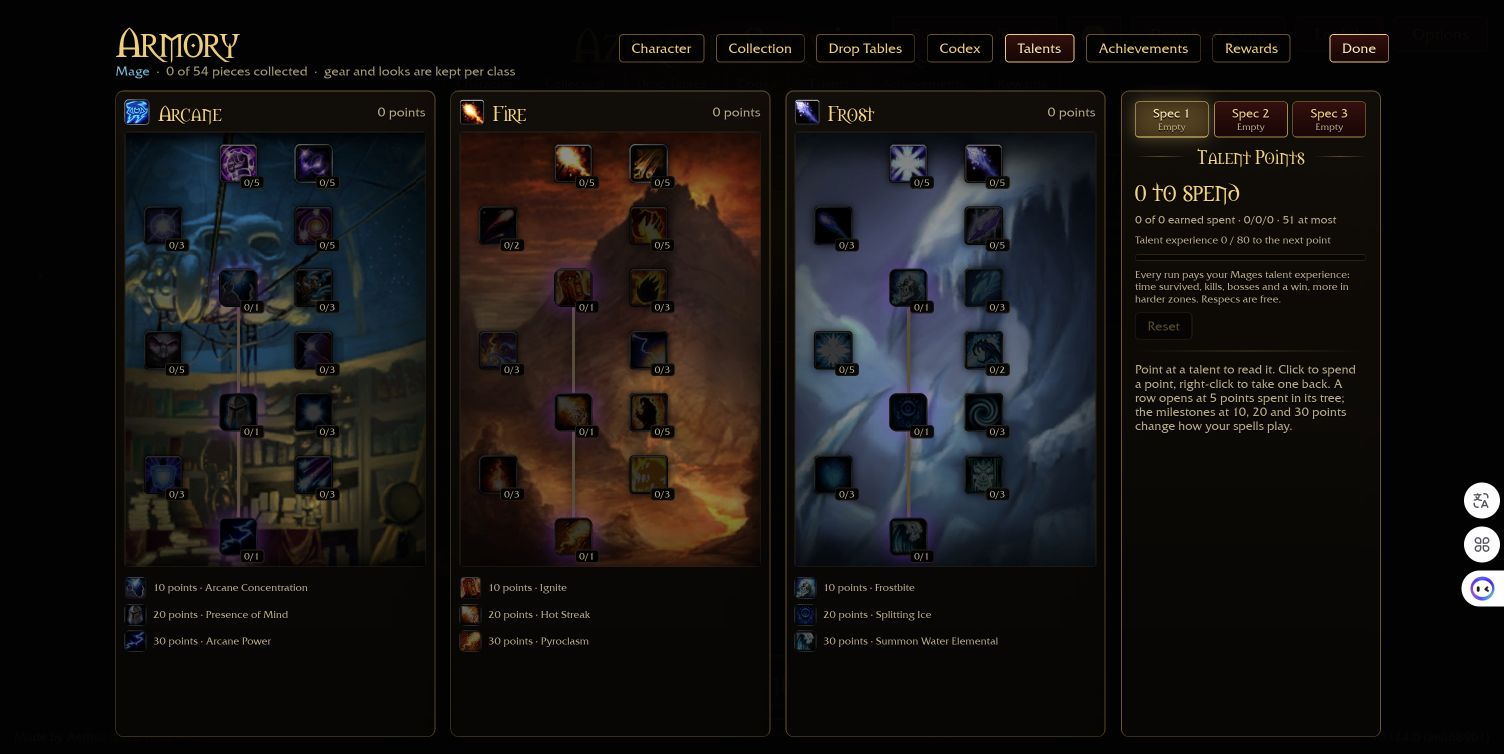
On the character screen, open Talents to inspect your class tree. In a fresh Mage session on browser build 0.124.0, the Armory showed Arcane, Fire and Frost trees, with zero talent points available. The interface says each run earns that class talent experience from time survived, kills, bosses and wins, with more in harder zones.
When you have earned points, point at a talent to read its description and click to spend a point; the screen says right-click removes one. Each row opens after five points are spent in that tree, and milestones appear at 10, 20 and 30 points. The menu says respecs are free. These are instructions shown in the Mage menu; we have not yet tested earning or spending points in a complete run.
If the browser game fails to load
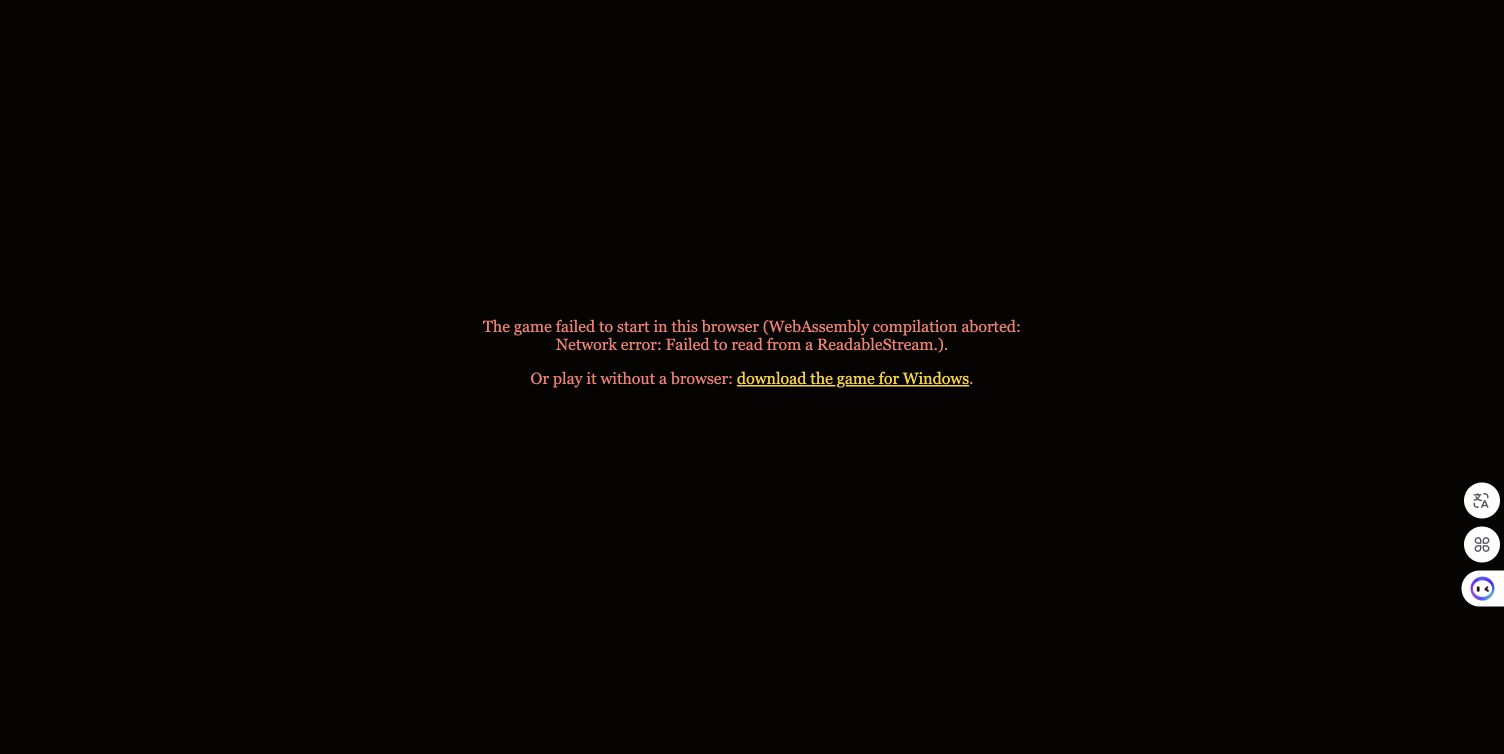
The game may show a client download progress indicator before the character screen. In one Edge session on 29 October 2026, our load reached a progress screen and then displayed a WebAssembly compilation and stream-read network error. A refresh and another attempt in that session did not reach the character screen.
The error screen offered a Windows download link. We did not download or test the Windows version, identify the cause of the browser error, or verify a fix. Check the exact message in your own browser; a progress indicator or a black screen alone does not establish the same cause.
What to check next
The character screen also has Collection, Drop Tables, Codex and Talents. The equipment guide explains how to inspect boss drops and item details. Those screens are useful places to inspect your character, but the outcome and rewards of a full first clear have not yet been checked in this guide. See the official game’s current menu after a version update.
Video guides
See the choices in play
Use these related videos alongside the written explanations and your own in-game interface.
YouTube
Level-up choices in Whiter’s overview
Sources
Reviewed:
0.123.0
The opening run and its original card choice were checked on v0.123.0. The key-binding menu was inspected on v0.126.0; a separate Paladin level-up, reroll and card choice were tested on v0.127.0. Other steps have not all been retested on v0.127.0.