
Quick Guide
The host selects a hero and zone, opens Co-op → Host, chooses lobby settings and creates the room. A friend opens Join by code and joins; the host then closes the lobby window and enters the zone.
- Choose your hero and a zone available to everyone’s selected class.
- The host opens Co-op → Host, sets visibility and player limit, then creates the lobby.
- Friends choose Join by code, enter the host’s code and any password, and wait for the host to enter the zone.
Choose a hero, open Co-op and create or join a lobby before the host starts the zone. This walkthrough follows a two-player private-room test in the browser version 0.123.0.
On this page
Before you start
Open the creator’s browser game on each player’s device or window and choose the character you want to play. Consult the zone unlock order before choosing a later area. Select a zone and difficulty your group can access: the host screen says every joining player needs that zone and difficulty open on their selected class.
The lobby list is labelled for the current version. If friends cannot see one another’s rooms, first compare the game version shown on each character screen. We tested two browser tabs on the same computer; other devices and the Windows download have not been tested.
Find a public lobby
Open Co-op and select Lobbies to browse public rooms for the displayed game version. In our v0.127.0 session, the list offered Can join, No password, Zone and Difficulty filters. Choosing Can join changed the visible results; adding No password narrowed the list again. Select a listed room to attempt to join it, and use Refresh to request an updated list.
The unfiltered list showed locked-zone warnings for our fresh Paladin. We did not join a public room or independently test every filter combination, so availability and successful entry may differ in your session.
How to host a lobby
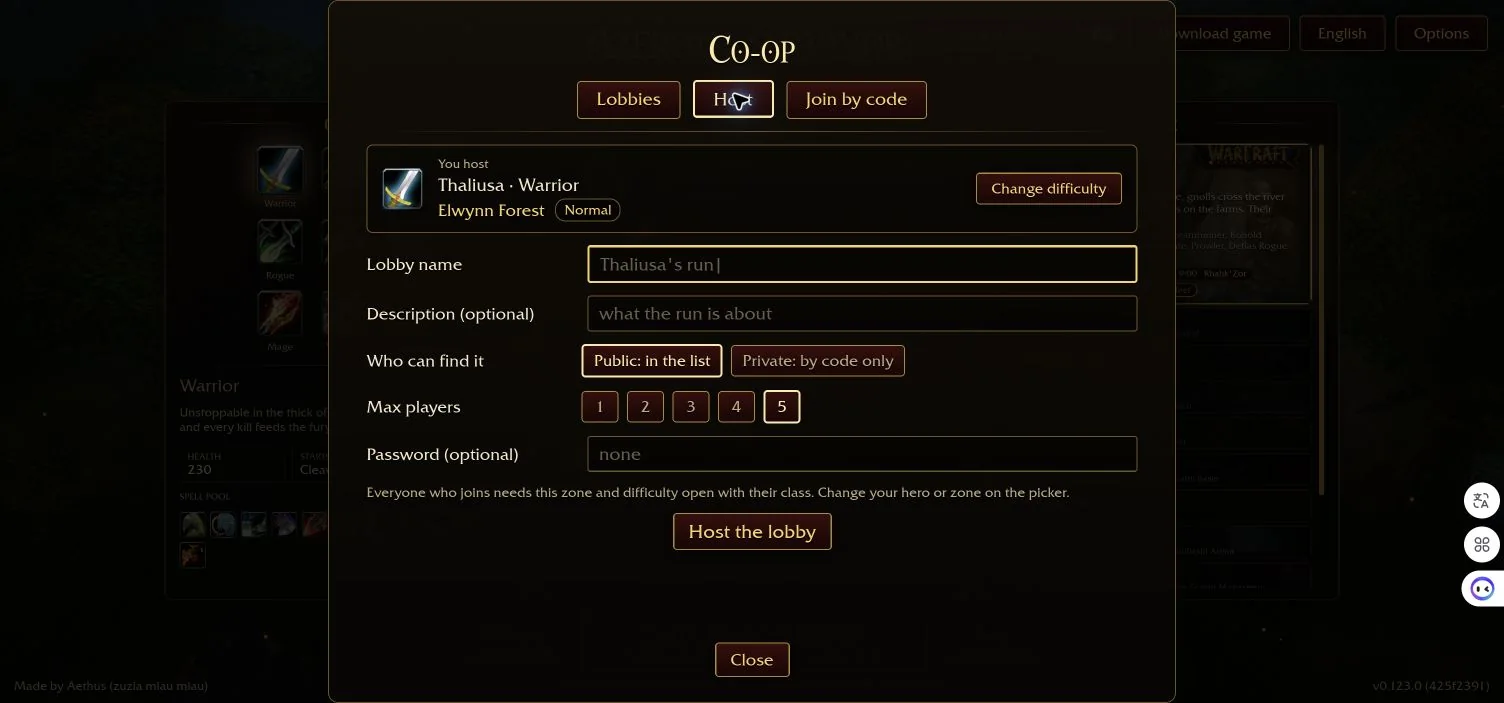
On the character screen, choose your hero and zone, then select Co-op beside the large Enter Zone button. Open the Host tab. The form shows the host’s hero, selected zone and difficulty, along with a lobby name and optional description.
Choose Public to appear in the list or Private for code-only discovery. Set the maximum player count using the 1–5 buttons, and optionally enter a password. Select Host the lobby. In our test, a private room appeared with the host, an empty slot and a lobby code.
How to join a friend by code
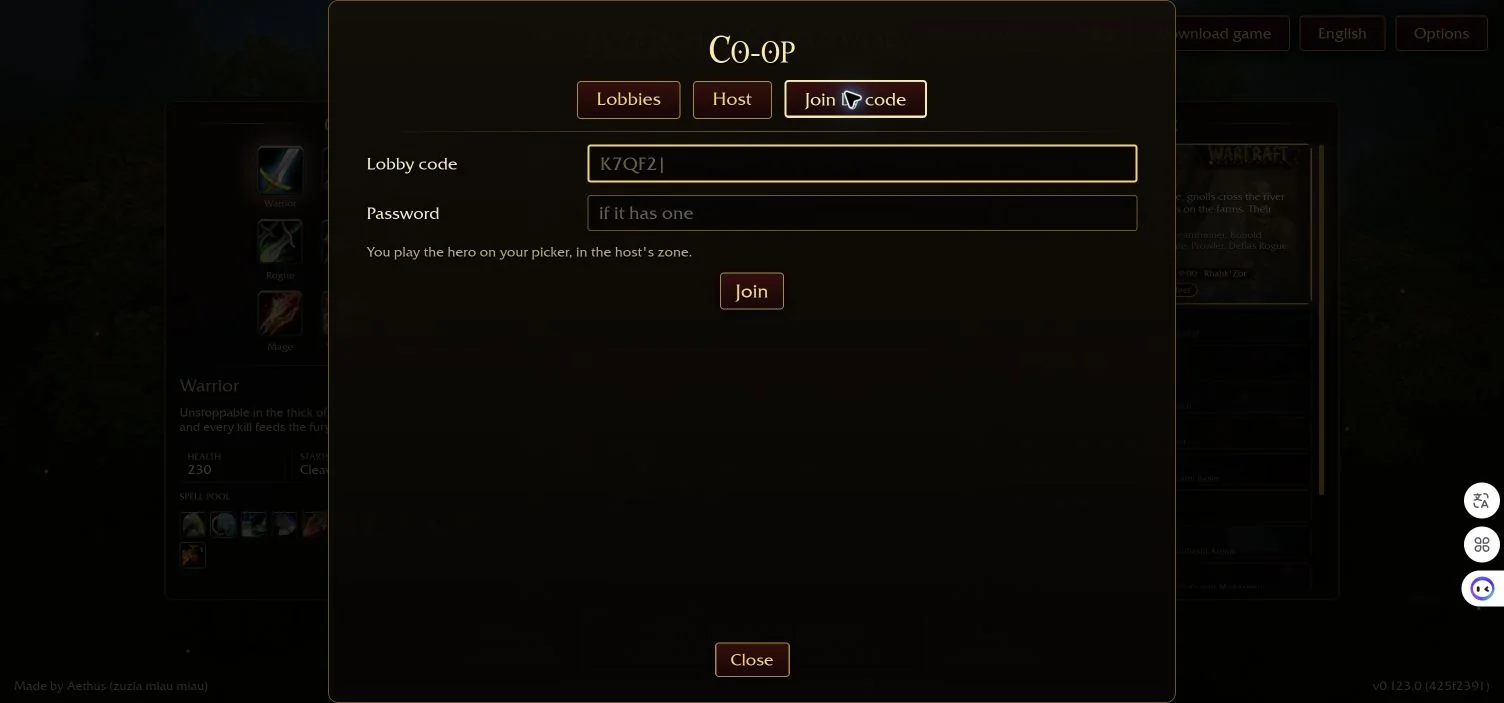
Choose the hero you want to bring, open Co-op and select Join by code. Enter the code from your host and the password if the room has one, then press Join. The game states that you bring the hero on your picker to the host’s zone.
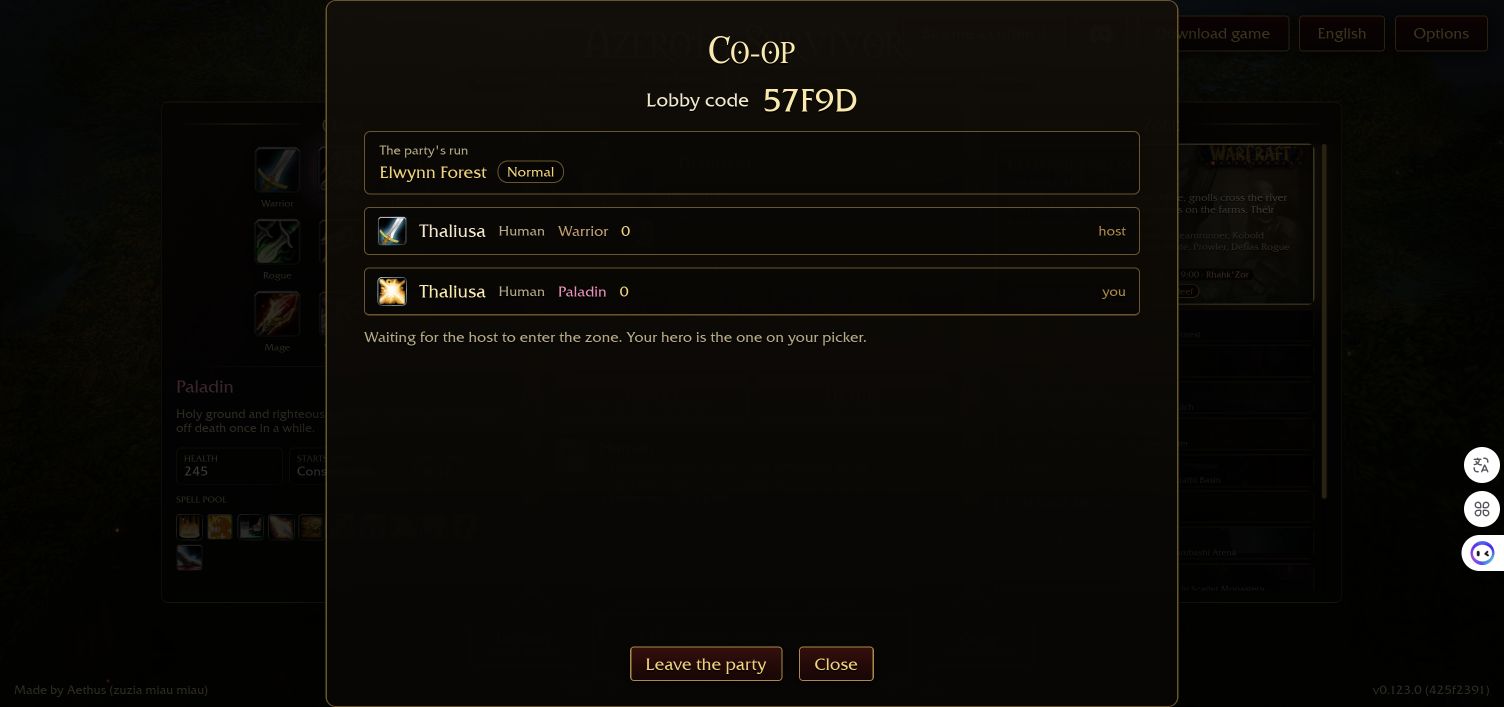
A successful join shows both players in the same lobby. In our test the joining character’s screen said it was waiting for the host to enter the zone. The code shown in the screenshot was for a temporary test and is no longer an active invitation.
Start the run together
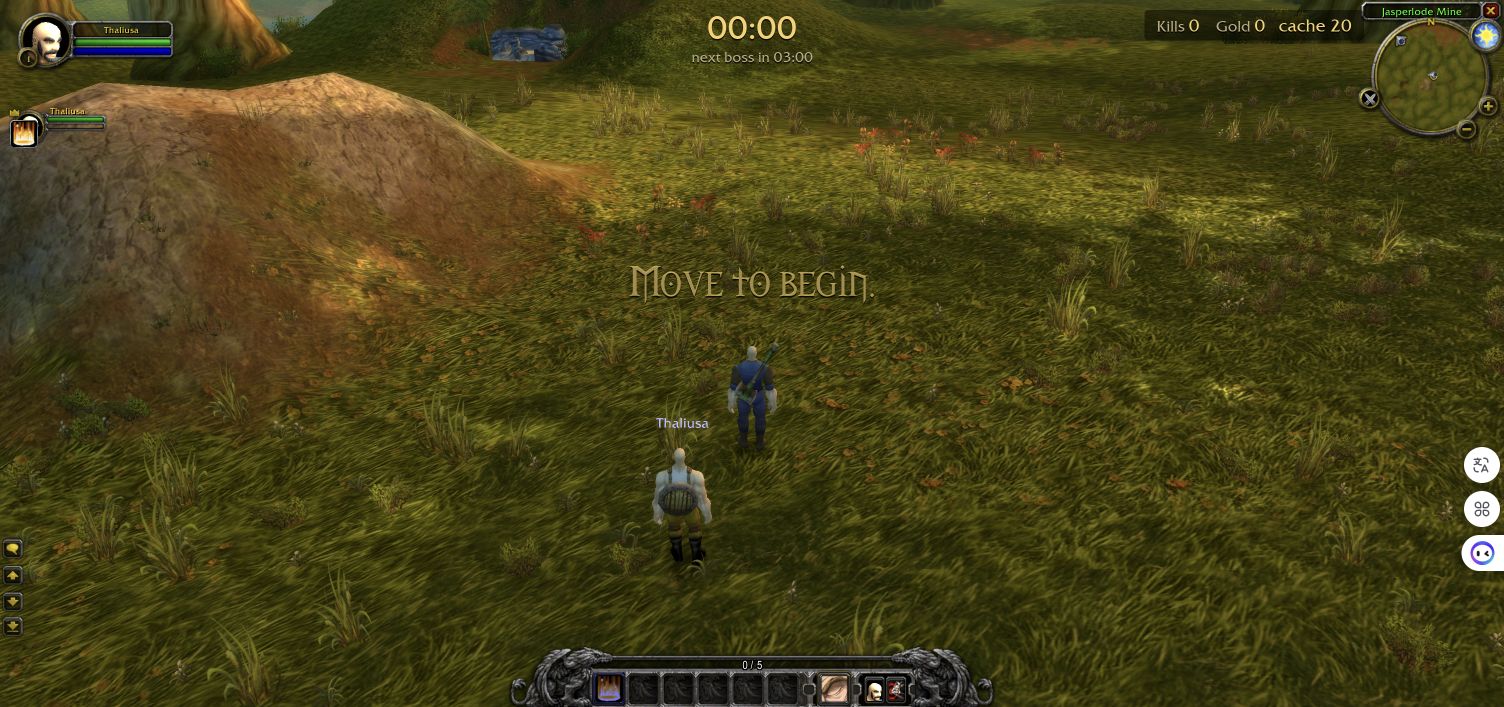
After the other player appears in the lobby, the host closes the lobby window and selects Enter for the chosen zone. The host screen says the party comes along. In our two-tab test, both characters appeared in Elwynn Forest with the Move to begin prompt.
This confirms joining and entering the opening scene in the tested setup; it does not establish completion, five-player behaviour or reconnection.
If the code does not work
Check the complete code with the host and make sure the room still exists. In our test, an incorrect entry produced “Could not join: no lobby with that code.” Correcting the code then allowed the second character to join. This is one observed error, not a diagnosis for every connection failure.
If a room has a password, ask the host for it. Also check that your selected class has opened the host’s zone and difficulty. We have not reproduced wrong-password or version-mismatch messages, so do not treat their causes as confirmed here.
In a later v0.124.0 test, the host created a private room, but the second tab displayed ‘Co-op is unavailable: the co-op service cannot be reached.’ A retry showed ‘Joining’, while the host still saw an empty slot; we did not confirm a successful join. The message identifies a connection problem in that attempt, but does not establish whether the cause was local, network-related or on the service. Check the game’s current status and try again later if you see the same message.
When a player goes down
A linked community co-op video shows an on-screen instruction that a friend must stand next to the downed player. We have not verified the full revive sequence or the video’s game version; check the prompt in your own run.
What this guide has tested
The private-room example used two tabs in the same browser, no password, the initial zone and normal difficulty on game 0.123.0. Public discovery, password-protected rooms, cross-device play, five players, revives and reconnects still need separate testing. The game can update, so check current menu labels if yours look different.
Sources
Reviewed:
0.123.0
Private-room hosting, joining and the opening scene were tested in v0.123.0 on 28 October 2026. Public-lobby filter controls were separately observed in v0.127.0 on 29 October; we did not join a public room or repeat the full private-room test on that version.